Overview
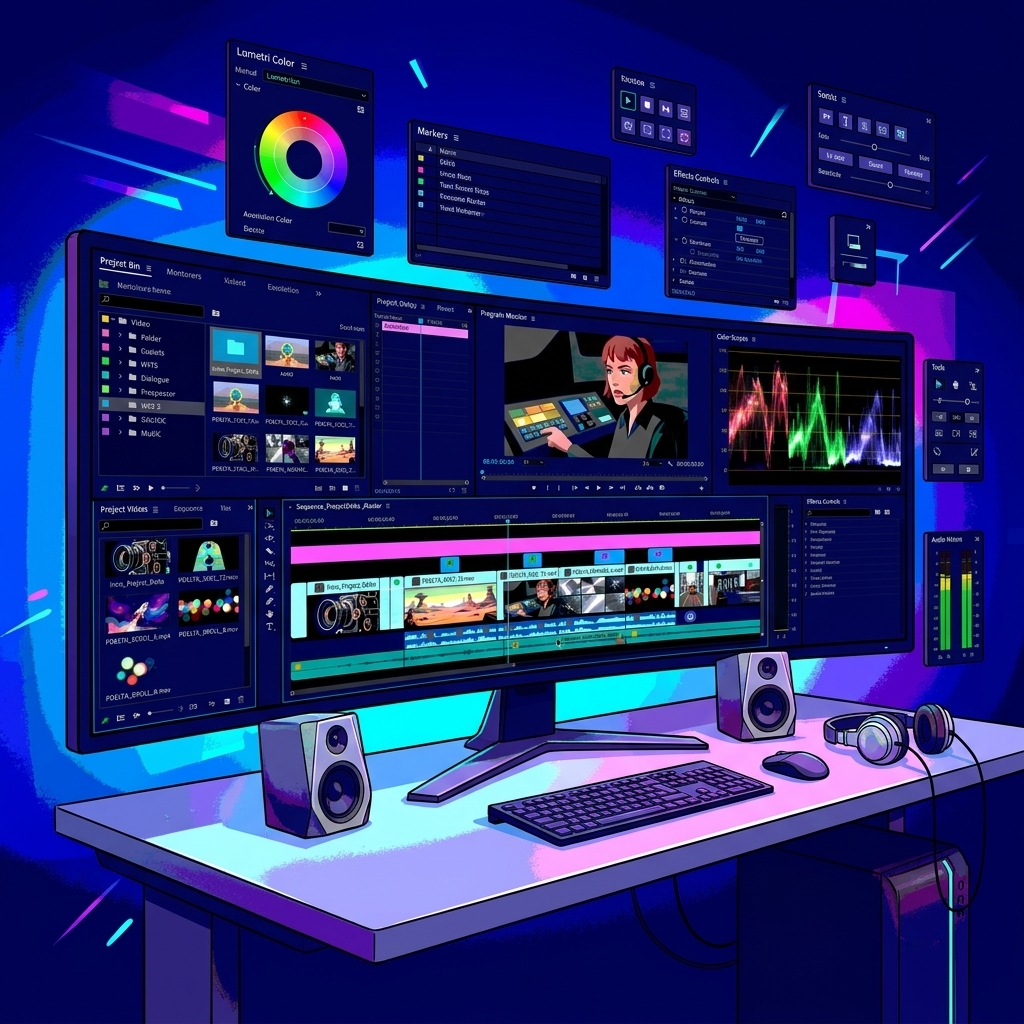
Every editor has experienced it. You're deep into a project when you suddenly realize you've spent more time opening and closing panels than actually editing your video.
The Effects panel covers your timeline. The Project panel is too small to find your footage. Your Program Monitor disappears after opening Essential Graphics. Audio controls are buried behind another window.
None of these problems affect the final export, but they constantly interrupt your creative flow.
Adobe Premiere Pro offers one of the most customizable interfaces in the creative industry, yet many editors continue using the default workspace throughout their entire careers. The truth is, there is no perfect Premiere Pro workspace. There is only the workspace that's perfect for your editing style.
Let's explore how different creators can organize Premiere Pro for maximum productivity and why a well-designed workspace is one of the easiest ways to become a faster editor.
Your Workspace Should Match Your Workflow
Many editors make the mistake of adapting themselves to Premiere's default layout. Professional editors do the opposite. They adapt Premiere to match the way they think.
Ask yourself a few simple questions:
- Do you spend most of your time trimming clips?
- Are you constantly adjusting audio?
- Do you frequently browse hundreds of assets?
- Do you create motion graphics every day?
- Do you color grade every project?
Your answers should determine which panels receive the most screen space. The panels you use every minute deserve priority. Everything else should stay available without becoming a distraction.
The Ideal Workspace for YouTube Creators
YouTube editors typically work with talking-head footage, B-roll, screen recordings, motion graphics, music, and voiceovers. Their workspace should prioritize speed and storytelling.
An effective layout includes:
- Large Timeline at the bottom
- Project Panel on the lower left
- Source Monitor on the upper left
- Program Monitor centered
- Essential Graphics docked on the right
- Effects Panel beside Graphics
- Essential Sound accessible with one click
Since YouTube projects often involve constant revisions, keeping frequently used panels visible minimizes unnecessary navigation. A larger timeline also makes pacing and jump-cut editing significantly easier.
The Best Workspace for Documentary Editors
Documentary projects usually involve hundreds of clips spread across interviews, archival footage, B-roll, photographs, maps, and voiceovers. Finding media quickly becomes just as important as editing.
For documentary editors, prioritize:
- Large Project Panel
- Metadata Panel
- Media Browser
- Search Filters
- Timeline
- Program Monitor
Bins should remain visible throughout the edit. When you're searching through thousands of assets, every extra click adds up. A well-organized workspace can save hours over the course of a feature-length project.
Social Media Editors Need Speed Above Everything
Short-form content demands volume. Editors creating Instagram Reels, TikTok videos, and YouTube Shorts often produce multiple videos every day. Their workspace should reduce repetitive actions.
Recommended layout:
- Extra-large Timeline
- Essential Graphics
- Captions
- Effects Controls
- Program Monitor
- Project Panel
Since these projects rely heavily on captions, animations, and motion graphics, keeping these panels permanently visible speeds up production considerably. Less panel switching means more videos completed each day.
Commercial and Brand Video Editors
Commercial editors frequently work alongside clients, agencies, and marketing teams. Precision matters. Their workspace should emphasize review and refinement.
Useful panels include:
- Lumetri Color
- Essential Sound
- Effect Controls
- History Panel
- Program Monitor
- Scopes
- Project Panel
Color consistency, audio balancing, and motion graphics often require constant adjustments. Keeping these tools immediately accessible helps maintain creative momentum during client revisions.
Why the Timeline Deserves the Most Space
Your timeline is where every creative decision happens. Yet many editors dedicate only a small portion of their screen to it.
A larger timeline offers several advantages:
- Easier trimming
- Better visibility of multiple tracks
- Simpler audio synchronization
- Cleaner keyframe editing
- Faster navigation
If you're constantly zooming in and out, consider resizing your panels before changing anything else. Sometimes improving your workflow is as simple as giving your timeline room to breathe.
Organize Your Panels Around Frequency of Use
A useful principle followed by experienced editors is simple:
The more often you use a panel, the closer it should be.
Daily panels:
- Timeline
- Project
- Program Monitor
- Effect Controls
Occasional panels:
- Lumetri Color
- Essential Graphics
- Essential Sound
- Captions
Rarely used panels:
- Libraries
- Info
- Metadata
- History
Instead of opening and closing windows throughout the day, create a layout where your most-used tools remain permanently visible. Every click saved contributes to a smoother editing experience.
Save Multiple Workspaces Instead of One
Few editors perform the same task throughout an entire project. During one session, you may organize footage. Next, you assemble the rough cut. Later, you mix audio. Finally, you color grade.
Rather than forcing one workspace to handle everything, create dedicated workspaces for each stage. Examples include:
- Assembly
- Editing
- Audio Mixing
- Motion Graphics
- Color Grading
- Final Review
Switching between customized workspaces is far more efficient than constantly rearranging panels manually. Premiere Pro allows you to save these layouts, making them instantly available whenever you need them.
Reduce Mental Clutter Alongside Screen Clutter
A crowded interface creates a crowded mind. The more visual noise on your screen, the harder it becomes to focus on storytelling.
Ask yourself: Do I really need this panel open?
If the answer is no, close it. Minimal workspaces encourage faster decision-making because your attention remains on the timeline instead of dozens of competing interface elements. Good editing isn't about having every tool visible. It's about having the right tools visible.
Keep Your Creative Flow Inside Premiere Pro
One of the biggest interruptions during editing doesn't come from Premiere's interface. It comes from leaving Premiere altogether.
Many editors write a script, open a browser, visit an AI voice generator, generate narration, download the file, rename it, import it back into Premiere, and finally place it on the timeline. When revisions arrive, the entire process starts again.
Every switch between applications breaks concentration and slows creative momentum. A streamlined workspace isn't just about arranging panels. It's also about reducing the number of tools you need to leave the application for.
Generate Voiceovers Without Leaving Your Timeline
A truly optimized Premiere Pro workspace keeps everything you need in one place. That's the philosophy behind the Vampro AI Voice Generator for Adobe Premiere Pro.
Instead of interrupting your editing session to generate narration elsewhere, Vampro allows you to create AI voiceovers directly from within Premiere Pro.
You can write your script, choose a voice, generate natural-sounding narration, and immediately continue editing—all without opening a browser, downloading files, or switching between applications.
Because the plugin works alongside your existing editing workflow, your timeline remains the center of your creative process. Whether you're producing YouTube videos, documentaries, tutorials, product demos, or client presentations, keeping voice generation inside Premiere helps you stay focused on what matters most: telling a compelling story.
Your Workspace Should Evolve With You
The perfect Premiere Pro workspace isn't something you build once. It's something you refine over time.
As your projects grow and your editing style evolves, your workspace should evolve alongside it.
- Remove panels you rarely use.
- Expand the ones you depend on.
- Create separate layouts for different stages of production.
- Eliminate unnecessary interruptions wherever possible.
The best editing workflows aren't built around doing more. They're built around removing friction.
When your workspace supports the way you think—and your tools stay inside the timeline instead of pulling you away from it—you'll spend less time managing software and more time creating videos your audience will remember.