
Overview
Premiere Pro can handle multicamera productions, high-resolution footage, complex color grading, proxies, transcription, effects, and massive feature-length timelines.
Yet some of the smallest interactions in an editor's day can still feel surprisingly old-fashioned. Want to grab an image from somewhere and immediately use it in your edit? The workflow can still involve downloading, saving, locating, and importing it first.
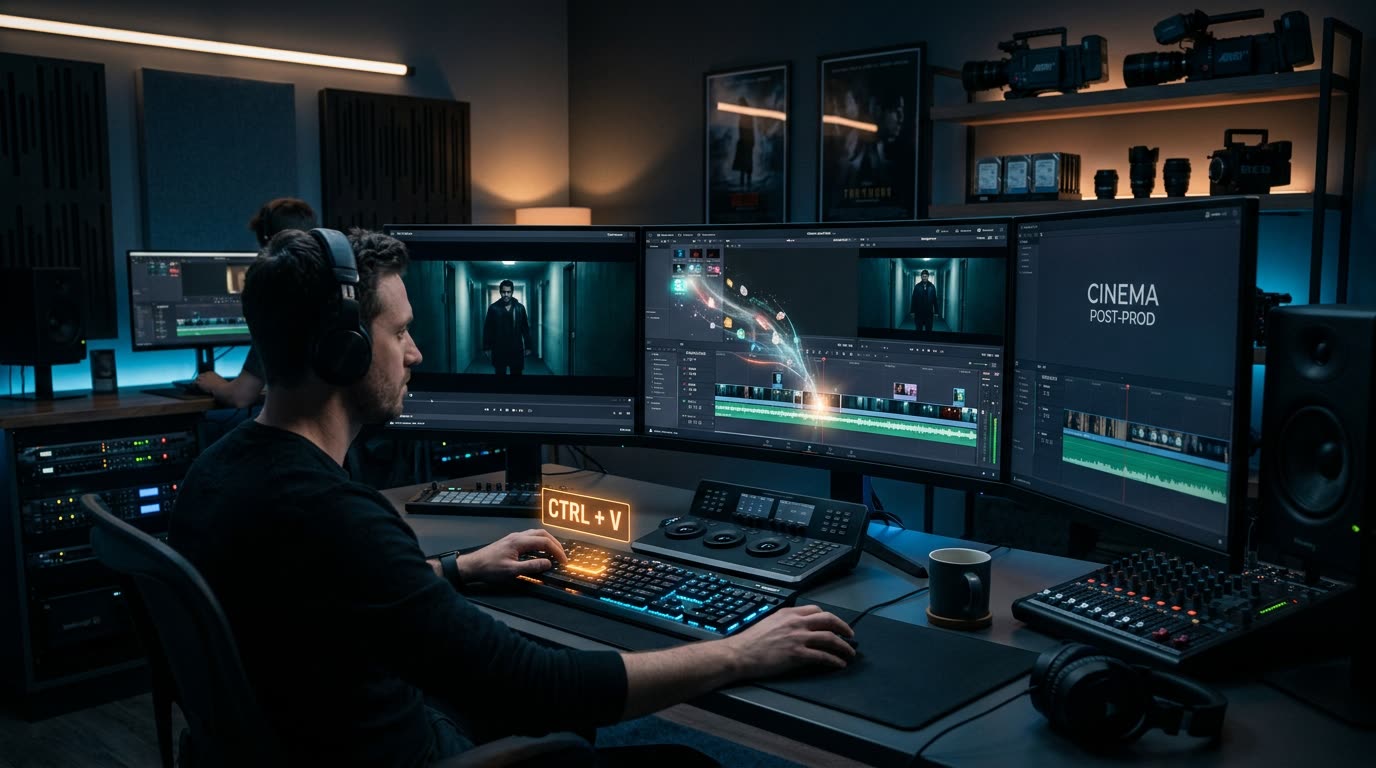
Here is why video editors deserve software that understands user intent—and how Universal Paste makes Ctrl+V work in Premiere Pro.
Editors don't work in one application anymore
Premiere may be the center of an editor's workflow, but it isn't the entire workflow.
An editor might jump between Chrome, Photoshop, After Effects, Slack, Google Docs, File Explorer, stock libraries, AI tools, and review platforms.
The operating system has effectively become the editing workspace. That makes interoperability increasingly important—not just between professional creative suites, but between Premiere and everything else on your computer.
We already know what the interaction should be
This is what makes the problem interesting. Nobody needs to invent a new UX pattern. We've been using it for decades:
Ctrl+C. Ctrl+V.
Copy and paste is practically invisible. You don't think about it. You simply expect it to work. And when an application breaks that expectation, you notice immediately.
For an editor, being able to use the clipboard as an asset source could eliminate an entire class of repetitive import actions.
Why Premiere has a legitimate reason for needing files
Video editing applications aren't word processors. Premiere works with media files that need paths, metadata, formats, decoding, and project references.
An image sitting in your clipboard isn't necessarily a media file Premiere can simply reference. So the traditional workflow makes technical sense: the editor saves the content, a file is created, Premiere imports that file.
Problem solved. Technically.
But good software often exists to hide technical constraints from users. That's where things get interesting.
What if something handled the middle?
Imagine copying an image. Something detects what's on your clipboard. It processes the content, creates the media representation Premiere requires, manages the necessary file operations, communicates with Premiere, and gives the editor the result without requiring them to manually perform all those intermediate steps.
From a technical perspective, several things happened.
From the editor's perspective? They pasted an image.
That's the experience we're building with Vampro Universal Paste.
A Premiere plugin with a companion behind it
Universal Paste uses a Premiere Pro UXP plugin alongside a lightweight companion application.
That architecture is important. Premiere's plugin environment is responsible for the editing-side experience, while the companion can handle operating-system-level capabilities such as clipboard monitoring, screen capture, asset processing, and file management.
The two communicate locally. The result is a system that can do more than a conventional isolated panel while keeping the editor-facing interaction simple.
You shouldn't need to understand that architecture to use it. But it's what allows a seemingly obvious feature—paste this into Premiere—to actually work.
Universal Paste isn't trying to replace Import
Proper media management still matters. If you're editing a commercial, documentary, film, or large client project, your source footage should absolutely be organized.
Universal Paste solves a different category of problem: the things you don't want to formally import. The screenshot you need immediately. The image you just copied. The temporary visual. The reference asset. The content sitting on your clipboard right now.
For those moments, opening an Import dialog feels like unnecessary ceremony.
Editing software should understand intent
If you copy something and switch to an application, your intention is often obvious: you want to use it there.
The interesting question isn't whether professional editing software can support increasingly complex workflows. Clearly, it can.
The question is whether we can make the simple workflows simple too.
That's what we're exploring with Vampro Universal Paste. Because Premiere can already do the complicated stuff. Sometimes you just want Ctrl+V to work.
Make Ctrl+V Work in Adobe Premiere Pro
Join the early access waitlist for Vampro Universal Paste and experience instant clipboard-to-timeline editing.
JOIN THE UNIVERSAL PASTE WAITLIST ➔