
Overview
Screenshots are everywhere in modern video editing: tutorials, documentaries, product videos, YouTube essays, and corporate presentations.
And yet getting a screenshot from your screen into an edit often looks something like this: Capture → Save → Name → Locate → Import → Place → Delete later.
That is a lot of ceremony for something that may appear on screen for two seconds. Here is why screenshots should behave like clipboard objects and how to eliminate the file-management detour.
Screenshots became editing assets
Video editing used to revolve primarily around footage, audio, and graphics prepared specifically for production.
That's changed.
Editors now regularly work with content that exists outside traditional media libraries: web pages, tweets, dashboards, emails, documentation, UI screens, maps, comments, articles, chat conversations, and reference images.
The desktop itself has effectively become another source of footage.
But our workflows haven't completely caught up.
The hidden cost of temporary files
Suppose you're editing a software tutorial. You need a screenshot of one settings panel. You capture it.
Now you have to decide where it belongs.
- Do you put it inside the project assets folder? That feels excessive for a temporary screenshot.
- Do you leave it in Downloads? Now the project references a random file outside your project structure.
- Do you save it to the Desktop? That works—until your Desktop contains 47 other screenshots.
File organization is essential when dealing with important project assets. But forcing the same organizational workflow onto every disposable screenshot creates unnecessary work.
The real problem is context switching
The bigger cost isn't the number of clicks. It's what those clicks do to your concentration.
Editing requires constant micro-decisions:
- Where should this cut happen?
- Does this visual stay long enough?
- Should the music change here?
- Is the pacing too slow?
- Does this graphic communicate the idea?
Then suddenly you're thinking: Where did Windows save that screenshot?
That sounds trivial. But it's a completely different problem from the creative one you were solving two seconds earlier. The more frequently that happens, the harder it becomes to maintain momentum.
A screenshot should behave like a clipboard object
When you capture something temporarily, your intention is often obvious:
I want to use what I'm looking at right now.
The clipboard is perfect for this: Capture. Copy. Paste.
The intermediate file doesn't need to become part of your mental workload. And that's where Vampro Universal Paste comes in.
From screen to timeline with less friction
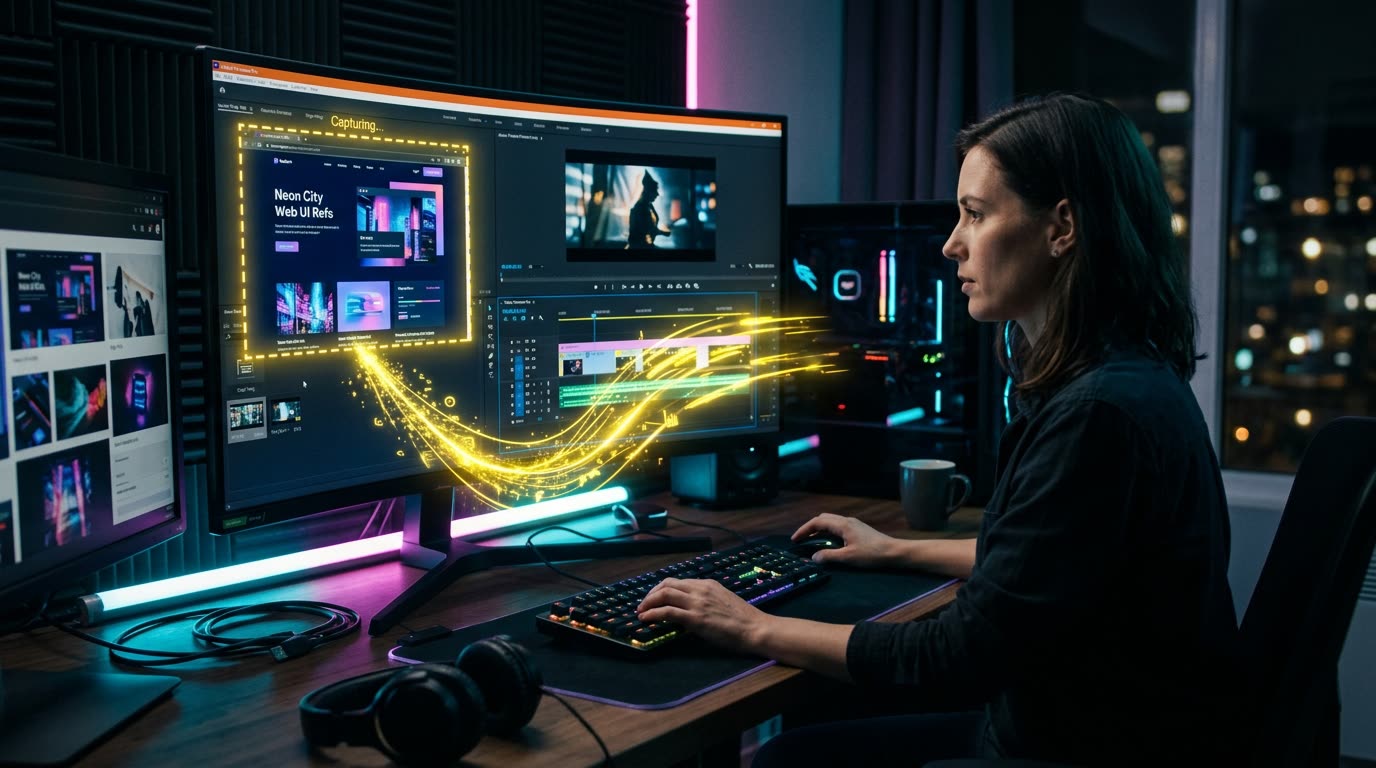
Universal Paste is designed to bridge the gap between your desktop clipboard and Premiere Pro.
Instead of treating every captured visual as a traditional media-import task, Vampro handles the conversion and file-management work required behind the scenes.
The experience you're aiming for becomes much closer to:
See it → Copy it → Paste it → Keep editing.
The technical work still happens. It just doesn't have to become your work.
Invisible tools are often the best tools
Some plugins are valuable because they add huge new capabilities to Premiere. Others are valuable because they disappear.
You don't open a complicated interface. You don't configure ten settings. You don't restructure your project around the plugin.
You perform an action you already understand—paste—and continue editing. That's what Universal Paste is trying to achieve.
Because sometimes the best workflow feature isn't another panel. It's one less interruption.
Turn Screen Captures Directly Into Premiere Clips
Snip any window, screen region, or app interface and paste it immediately onto your timeline without cluttering your desktop.
JOIN THE UNIVERSAL PASTE WAITLIST ➔